

AI video generation has become incredibly powerful, but most creators still face one major problem:
Character inconsistency.
Your character looks different in every scene, clothing changes randomly, facial features shift, and the final video feels disconnected.
The solution is surprisingly simple:
The New AI Video Workflow
Instead of generating video scenes directly, first create:
- Character Reference Sheet
- Product Reference Sheet (if needed)
- Storyboard Sheet
- Video Scenes
This workflow dramatically improves consistency in GPT Image 2, Veo 3, Kling, Runway, Pika, Hailuo, and other AI video tools.
Step 1: Generate a Character Reference Sheet
Before creating any storyboard or video scene, generate a complete character turnaround sheet.
This provides the AI with a visual blueprint that remains consistent across every shot.
Character Turnaround Prompt
Copy this prompt and replace the placeholders:
“Character Turnaround & Reference Sheet Generator
Create a professional character reference sheet of the same character from multiple angles for consistent AI generation.
Character: [Describe the character’s appearance, age, body type, facial features, hairstyle, clothing, accessories, and important details.]
Layout:
Display the same character in four views on a plain neutral grey studio background:
• Full Body Front
• Full Body Back
• Front Portrait
• Side Portrait
Style & Consistency:
Keep the same face, body proportions, hairstyle, outfit, colors, and accessories across all views.
Requirements:
Neutral grey background only.
No text, labels, logos, watermarks, props, or extra characters.
Art Style:
[Disney, Pixar, Realistic, Anime, Stylized 3D, Cinematic, etc.]”
Why This Works
The AI now understands:
- Facial structure
- Hair style
- Clothing details
- Body proportions
- Accessories
- Color palette
This becomes the master reference for all future scenes.
Step 2: Generate a Product Reference Sheet
If your video includes products, gadgets, toys, vehicles, or branded items, create a product reference sheet.
This ensures objects remain consistent throughout the video.
Product Reference Prompt
“Product Reference Sheet Generator
Create a professional product reference sheet showing the same product from multiple angles for consistent AI image generation.
Product:
[Describe the product, materials, colors, textures, branding, buttons, ports, and unique features.]
Layout:
• Front View
• Rear View
• Side View
• Close-Up Detail
Visual Style:
Photorealistic, Premium Commercial, Luxury Product Photography, Stylized 3D, etc.
Requirements:
Neutral grey background only.
No text, labels, watermarks, hands, props, or packaging.”
Benefits
- Consistent product appearance
- Better commercial videos
- Professional product showcases
- Improved AI accuracy
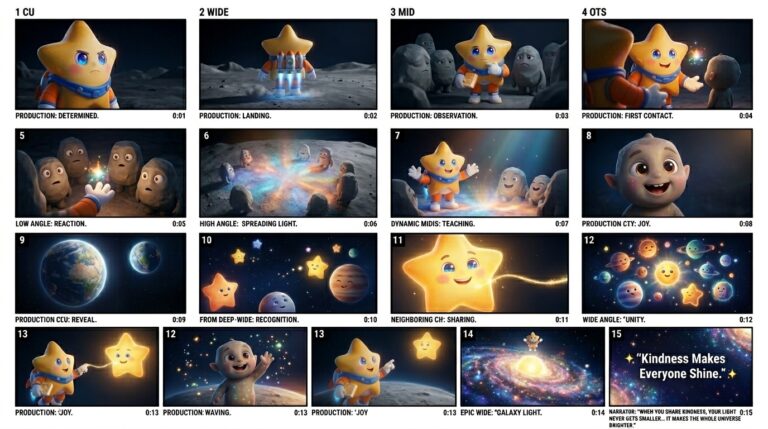
Step 3: Generate a Storyboard
Now that the AI understands your characters and products, create a professional storyboard.
A storyboard acts as a visual script for your video.
AI Storyboard Prompt Builder
Upload your character sheets and use this storyboard prompt.
The storyboard generator automatically creates:
- Introduction
- Conflict
- Emotional moments
- Climax
- Ending
It also includes:
- Camera angles
- Character expressions
- Environment details
- Lighting
- Story progression
- Production-ready layout
This creates a professional film-style storyboard that can be used directly with AI video generators.
Step 4: Convert Storyboard Panels into Video Scenes
Once your storyboard is complete:
- Crop each storyboard panel.
- Generate high-quality scene images.
- Use Veo 3, Kling, Runway, Pika, or Hailuo.
- Animate each scene individually.
- Combine clips in CapCut, Premiere Pro, or DaVinci Resolve.
Example Workflow
Character Idea:
A small glowing star named Spark who dreams of touching the moon.
Workflow:
- Create Spark Character Sheet
- Generate 15-panel storyboard
- Create scene images from each panel
- Animate with Veo 3
- Add music and sound effects
- Export final cinematic short film
Total time:
Less than 30 minutes.
Best AI Models for This Workflow
GPT Image 2
Excellent for:
- Character sheets
- Product sheets
- Storyboards
- Scene generation
Veo 3
Excellent for:
- Cinematic motion
- Realistic animation
- Professional storytelling
Kling AI
Excellent for:
- Character motion
- Facial expressions
- Action scenes
Runway
Excellent for:
- Fast scene generation
- Commercial content
Final Tip
Most AI creators generate videos first and hope for consistency later.
Professionals do the opposite:
Character Sheet → Product Sheet → Storyboard → Scene Images → AI Video
This single workflow can dramatically improve the quality, consistency, and storytelling of your AI-generated videos.