
If you run a website, Google Search Console (GSC) is the one free tool you can’t skip. It shows how Google sees your site: which pages are indexed, what keywords bring you clicks, and what errors are stopping pages from ranking. In this step-by-step tutorial you’ll learn how to set up Google Search Console, verify your website, and submit your sitemap — even if you’re a complete beginner.
What Is Google Search Console?
Google Search Console is a free service from Google that helps you monitor and improve your site’s presence in Google Search. With it you can:
- See which search queries bring visitors to your site
- Check impressions, clicks, CTR and average position
- Find and fix indexing and crawling errors
- Submit sitemaps and request indexing for new pages
- Monitor Core Web Vitals, HTTPS and security issues
- Track backlinks and internal links
What You Need Before You Start
- A Google account (Gmail works)
- Access to your website (WordPress admin, hosting panel, or source files)
- Access to your domain’s DNS settings (only for the Domain property method)
Step 1: Open Google Search Console
- Go to search.google.com/search-console and sign in with your Google account.
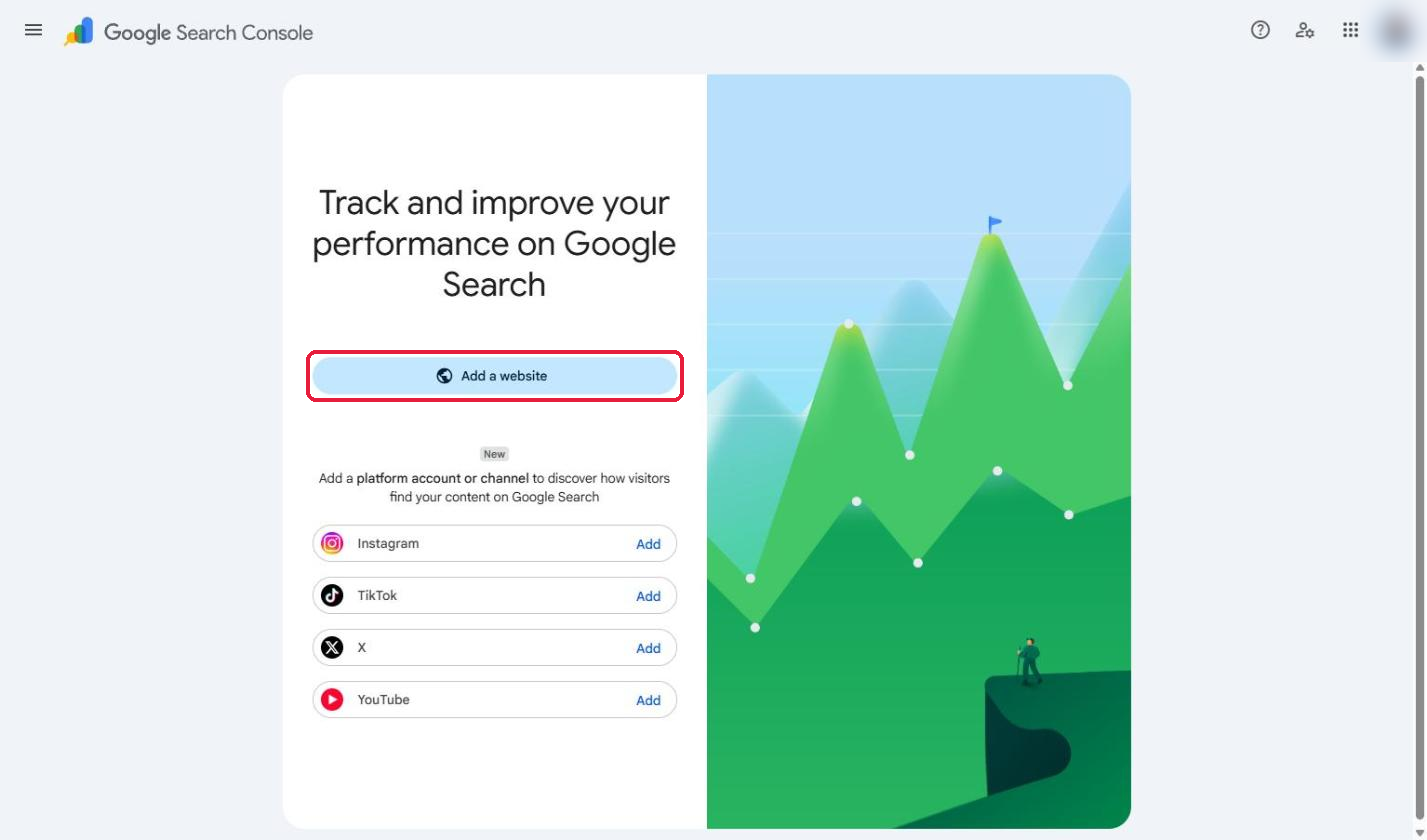
- On the welcome screen, click Add a website. (You’ll also see a new option to add platform accounts like Instagram, TikTok, X and YouTube — skip that for now.)
Step 2: Choose a Property Type
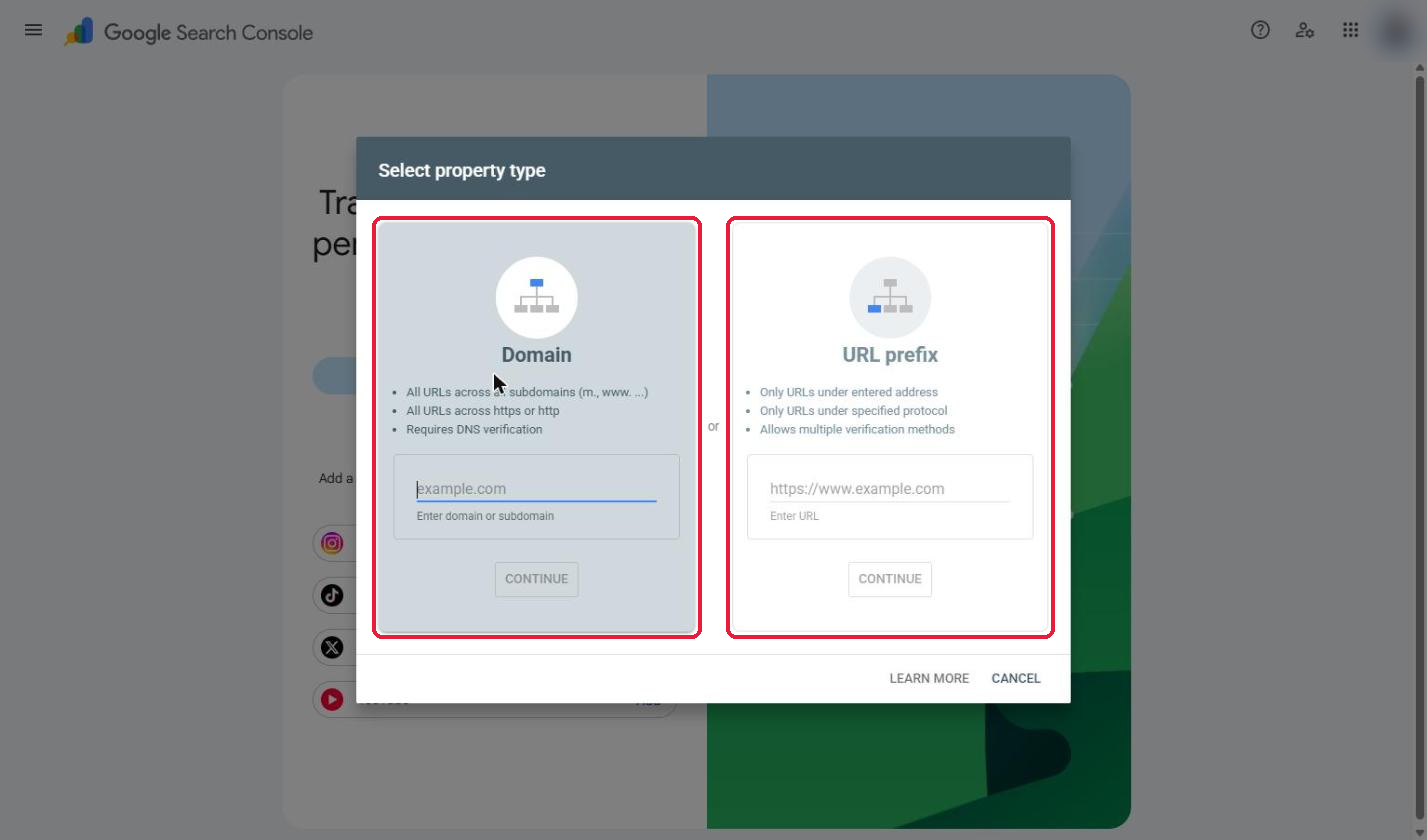
Google will ask you to select a property type. There are two options:
Option A: Domain Property (Recommended)
Enter only your domain name, for example example.com (no https:// or www). A Domain property covers all versions of your site — http, https, www, non-www and every subdomain (like blog.example.com). It can only be verified through DNS.
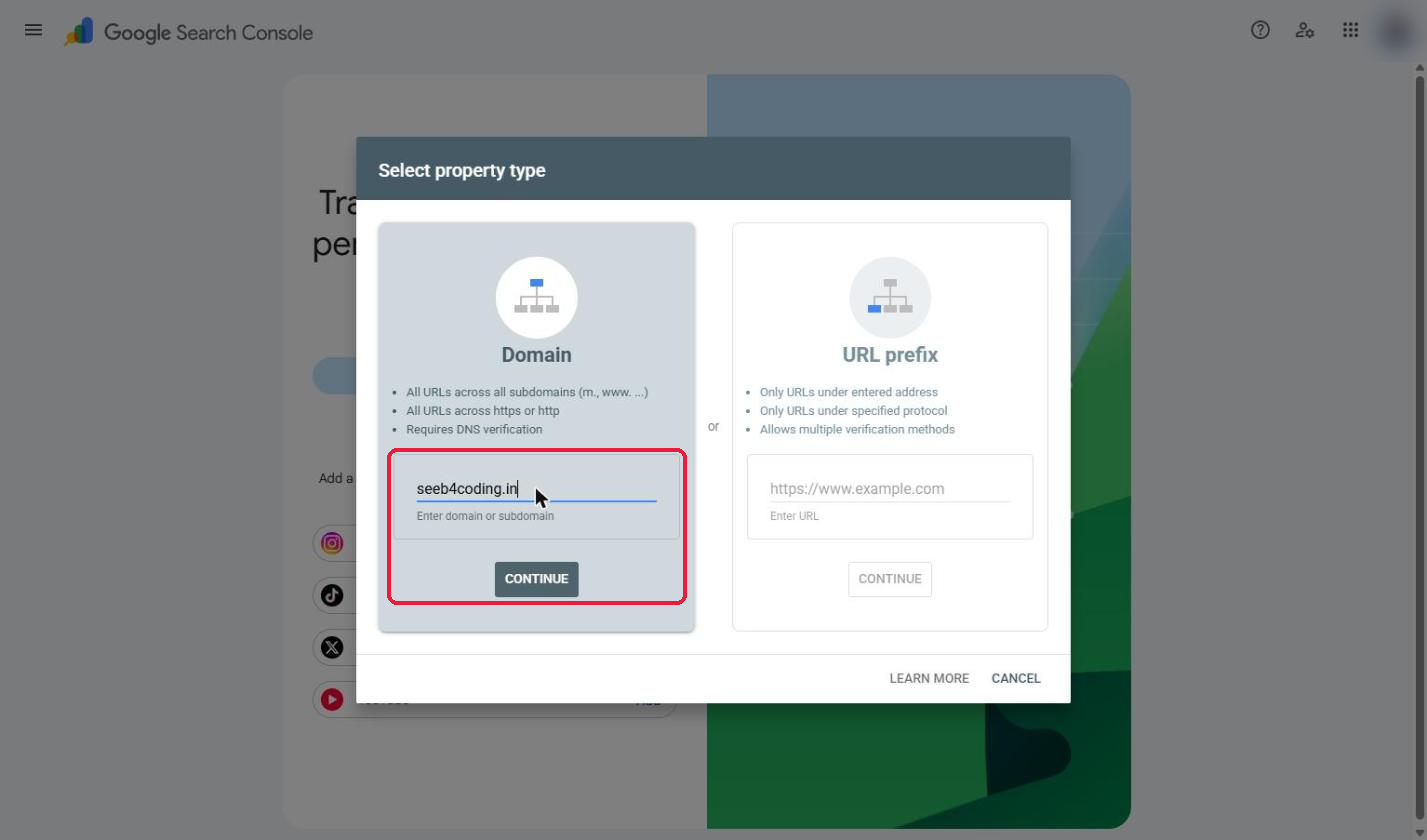
Option B: URL Prefix Property
Enter the full URL, for example https://www.example.com/. It only tracks URLs that start with that exact address. It’s easier to verify and offers several verification methods, which makes it a good choice if you can’t edit DNS records.
Tip: If you can access your DNS, go with the Domain property. You get the complete picture of your site in one place.
Step 3: Verify Your Website Ownership
Google needs proof that you own the site before showing you any data. Pick the method that fits your setup.
Method 1: DNS TXT Record (for Domain Property)
- After entering your domain, Google shows a TXT record like
google-site-verification=abc123.... Click Copy. - Log in to your domain registrar or DNS provider (GoDaddy, Hostinger, Namecheap, Cloudflare, etc.).
- Open DNS Management for your domain.
- Add a new record:
- Type: TXT
- Host/Name: @ (or leave blank)
- Value: paste the verification code
- TTL: default or 1 hour
- Save the record, go back to Search Console and click Verify.
DNS changes can take anywhere from a few minutes to 48 hours. If verification fails at first, wait a while and try again. Don’t delete the TXT record afterwards — Google checks it periodically.
Method 2: HTML Tag (Easiest for WordPress)
- Choose URL prefix, enter your full URL, then expand HTML tag.
- Copy the meta tag, e.g.
<meta name="google-site-verification" content="abc123..." />. - Add it to your site’s
<head>section:- Yoast SEO: Yoast SEO → Settings → Site connections → paste the code in the Google field.
- Rank Math: Rank Math → General Settings → Webmaster Tools → Google Search Console.
- All in One SEO: AIOSEO → General Settings → Webmaster Tools → Google Search Console.
- No SEO plugin: use a plugin like WPCode (Insert Headers and Footers) and paste the tag in the Header section.
- Save the changes, clear your cache, and click Verify in Search Console.
Method 3: HTML File Upload
- Under URL prefix, choose HTML file and download the file (e.g.
google1234abcd.html). - Upload it to your website’s root folder (usually
public_html) via File Manager or FTP. - Open
https://yourdomain.com/google1234abcd.htmlin your browser to confirm it loads. - Click Verify.
Method 4: Google Analytics
If your site already uses Google Analytics (GA4 gtag.js in the <head>) and you have Editor access on that property with the same Google account, just select Google Analytics and click Verify.
Method 5: Google Tag Manager
If your site uses Google Tag Manager and you have Publish permission on the container, select Google Tag Manager and click Verify.
Once verification succeeds, you’ll see an “Ownership verified” message. Click Go to property.
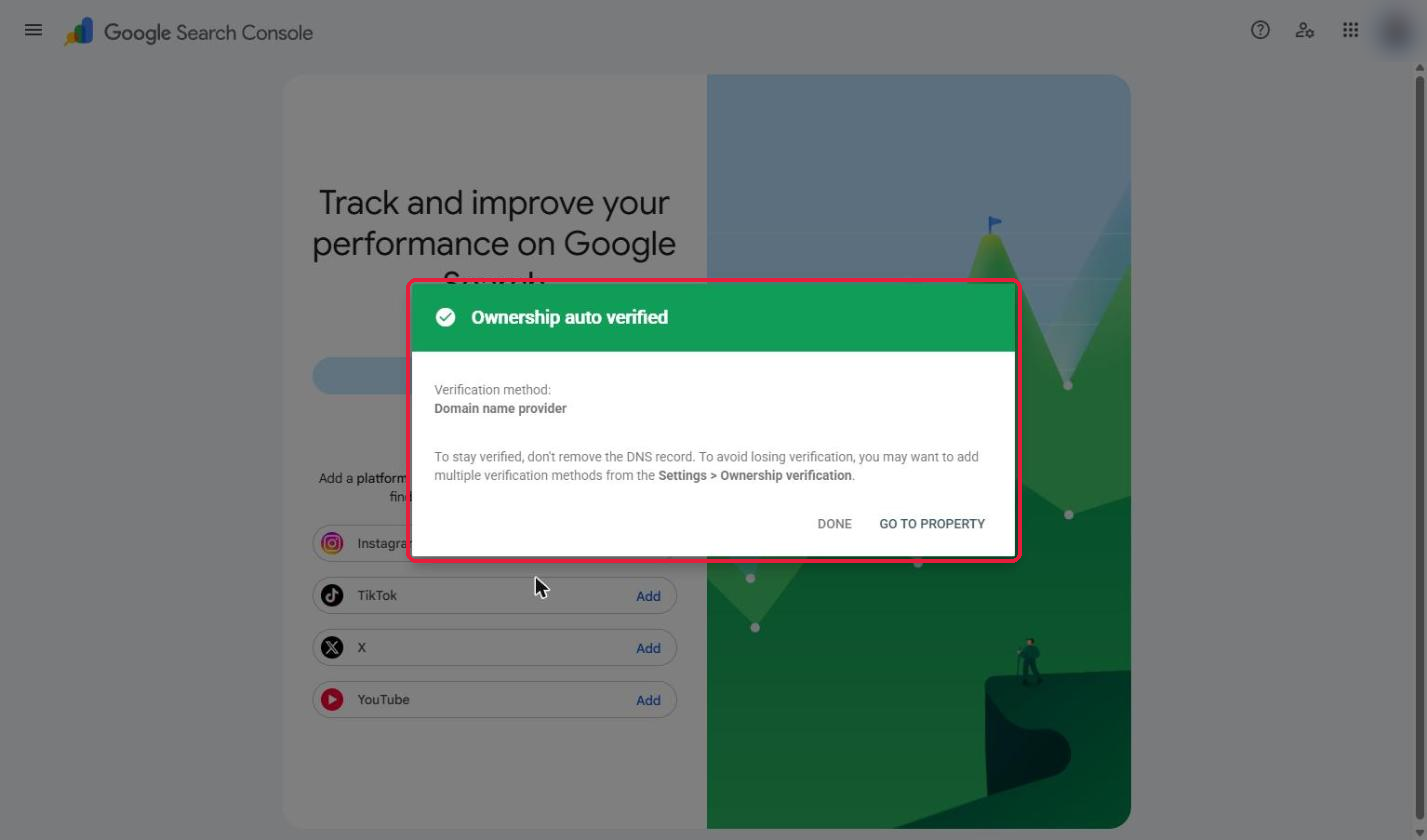
Note: If your domain registrar (or an existing DNS record) already proves ownership, Search Console may show “Ownership auto verified” right after you click Continue — no extra steps needed.
Step 4: Submit Your XML Sitemap
A sitemap helps Google discover all your important pages faster.
- Find your sitemap URL. Common ones are:
- Yoast SEO:
/sitemap_index.xml - Rank Math:
/sitemap_index.xml - WordPress default:
/wp-sitemap.xml
- Yoast SEO:
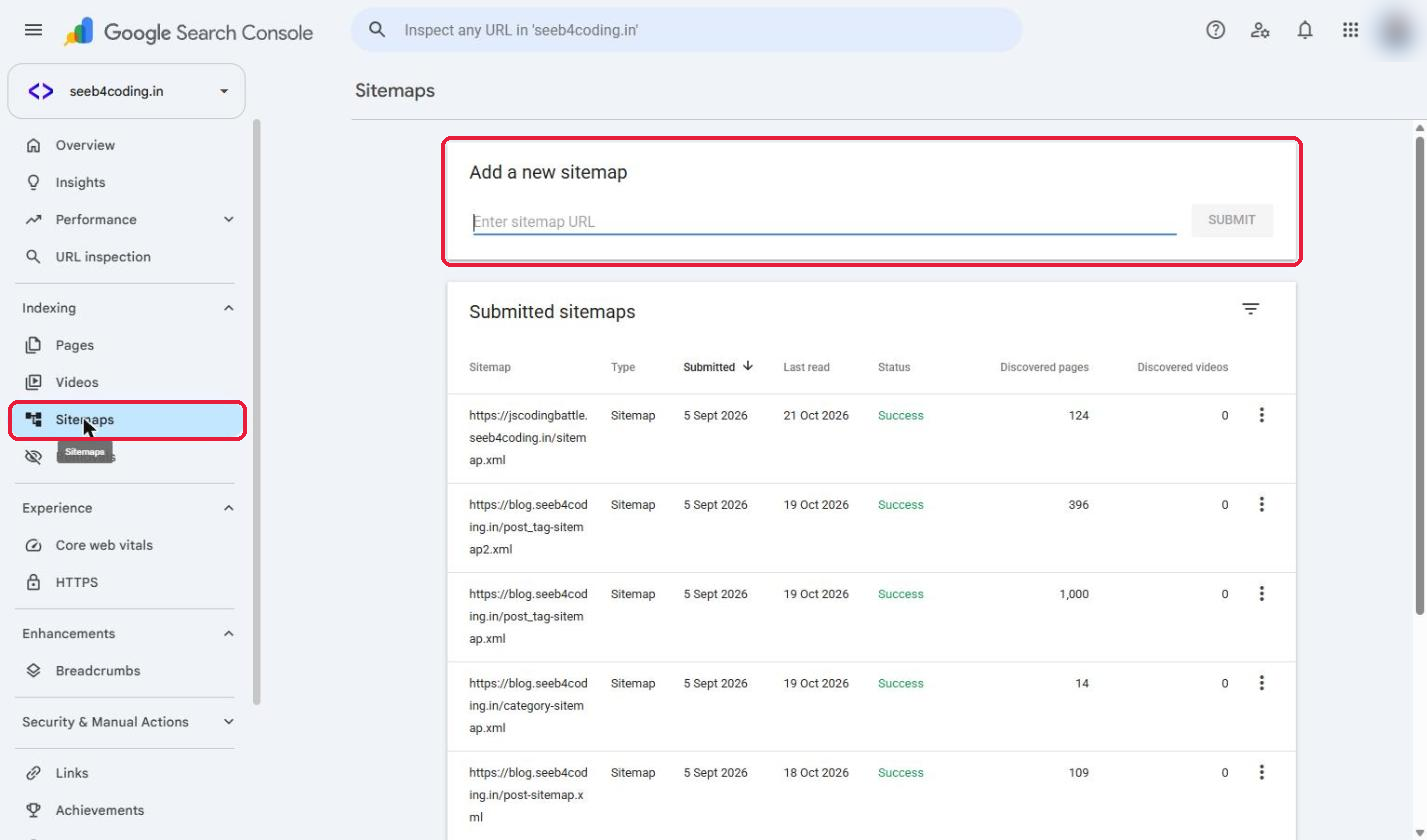
- In Search Console, click Sitemaps in the left menu (under Indexing).
- Enter the sitemap path (e.g.
sitemap_index.xml) and click Submit. - Status should change to Success. If it shows “Couldn’t fetch”, check that the URL opens in your browser and isn’t blocked by robots.txt.
Step 5: Inspect a URL and Request Indexing
- Paste any page URL into the search bar at the top of Search Console.
- Google shows whether the page is indexed (“URL is on Google”) or not.
- If it isn’t indexed, click Test Live URL to check for problems, then click Request Indexing.
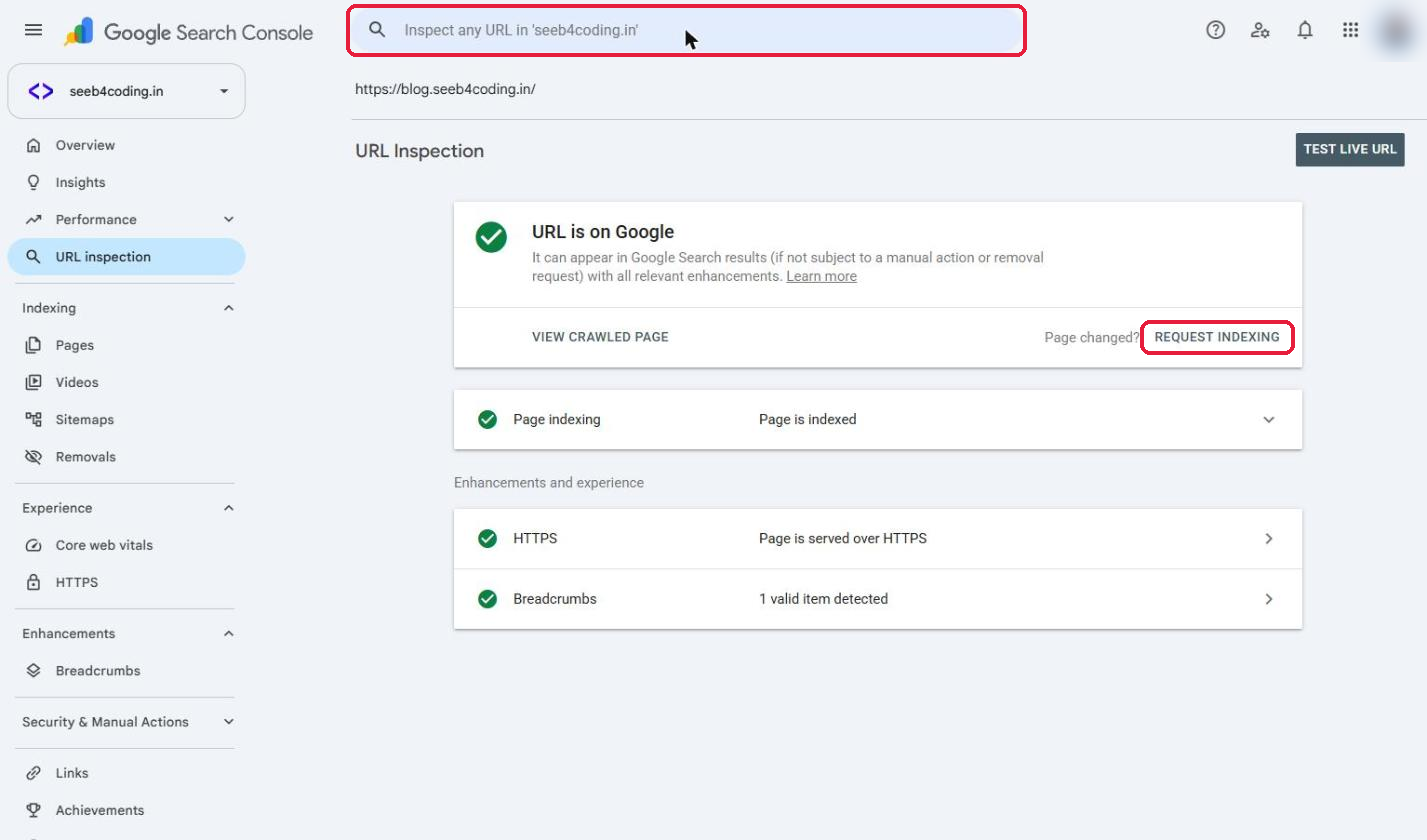
Use this for new blog posts or pages you’ve just updated so Google crawls them sooner.
Step 6: Add Users (Optional)
Working with a team or SEO agency? Go to Settings → Users and permissions → Add user, enter their email and choose Full or Restricted access. Never share your own Google login.
Step 7: Explore the Key Reports
Data usually starts appearing within 24–72 hours. Here are the reports to check regularly:
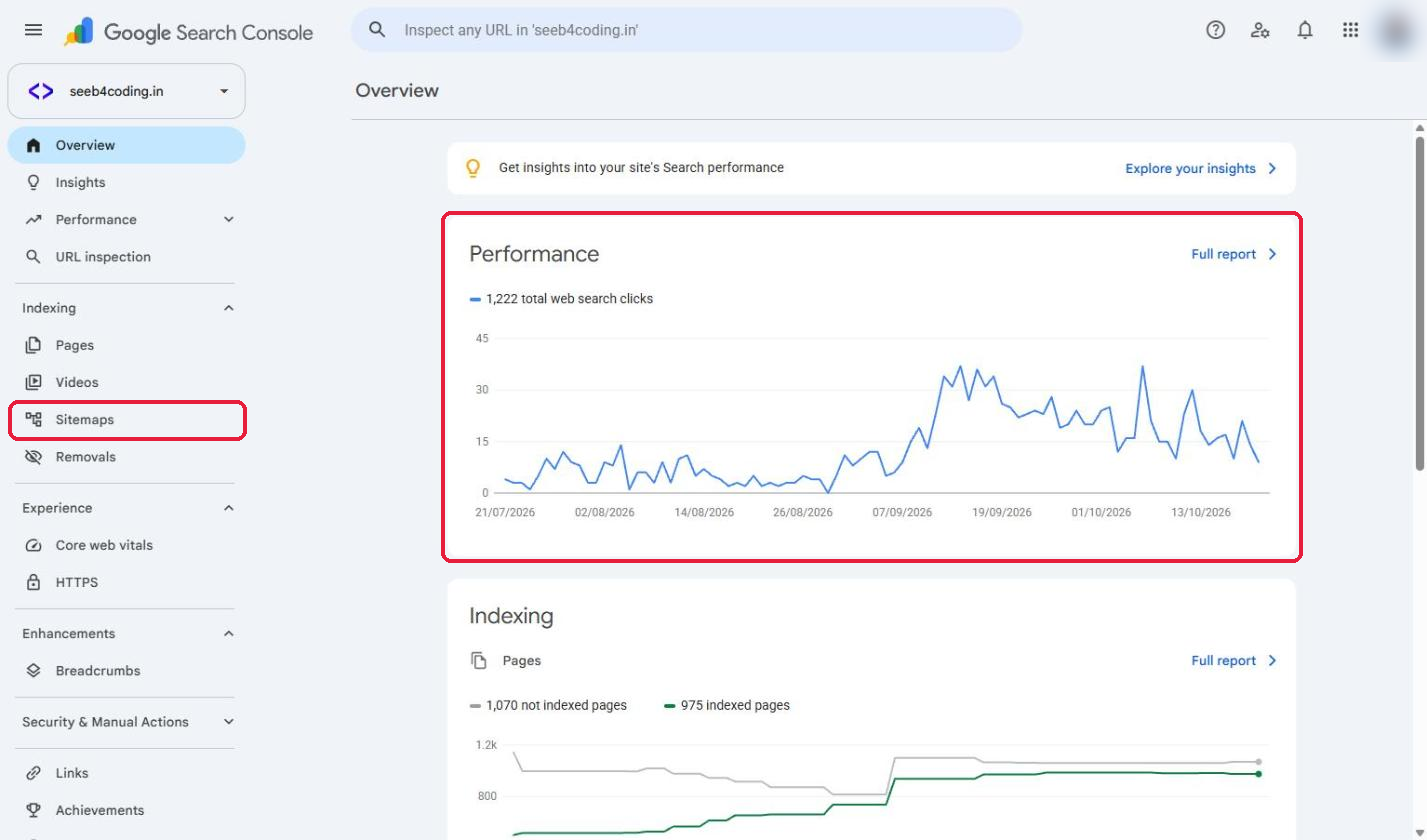
- Performance: clicks, impressions, CTR, average position, top queries and pages.
- Pages (Indexing): which pages are indexed and why others aren’t.
- Sitemaps: status of submitted sitemaps.
- Core Web Vitals: loading, interactivity and visual stability on mobile and desktop.
- HTTPS: pages that are or aren’t served over HTTPS.
- Manual actions & Security issues: penalties or hacking problems.
- Links: top linking sites and internal links.
Common Verification Problems and Fixes
- DNS verification failed: wait for propagation (up to 48 hours), make sure the TXT record is on the root domain (@) and has no extra spaces or quotes.
- Meta tag not found: clear your caching plugin and CDN cache; make sure the tag is in the <head>, not the body.
- HTML file not found: confirm it’s in the root folder and not redirected; the file name must match exactly.
- Wrong URL prefix: http vs https and www vs non-www are different properties. Use the exact version your site loads on.
- Analytics/GTM method fails: make sure you’re signed in with the same Google account that has the right permissions.
Frequently Asked Questions
Is Google Search Console free?
Yes, it’s completely free for any website owner.
How long until data shows up?
Usually 1–3 days after verification. Historical data from before verification isn’t always available.
Should I remove the verification code after verifying?
No. Google rechecks it periodically. If it’s removed, you’ll lose access to the property.
Domain property or URL prefix — which is better?
Domain property, if you can edit DNS. It covers every protocol and subdomain in one view.
Conclusion
Setting up Google Search Console takes about 10 minutes, and it’s one of the best things you can do for your website’s SEO. Add your property, verify ownership, submit your sitemap, and check your Performance and Indexing reports every week. The sooner you set it up, the sooner you’ll start getting the data you need to grow your organic traffic.
Found this tutorial helpful? Share it with a friend who’s launching a website, and follow SeeB4Coding for more step-by-step SEO and web development guides.