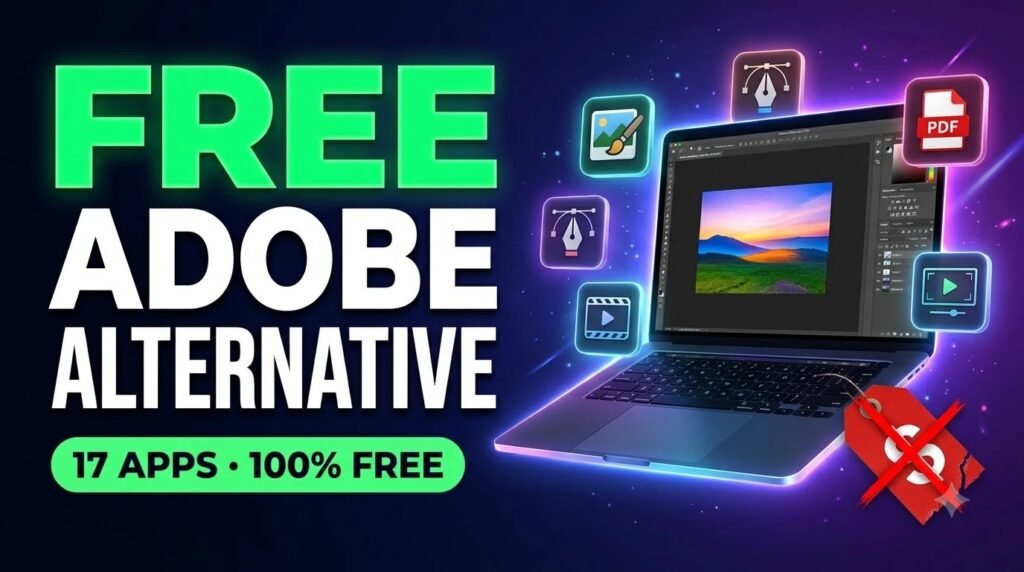

If you’re searching for a free Adobe alternative, you’re not alone. Most of us pay for Adobe Creative Cloud every month, whether we open Photoshop twenty times or twice. However, for students, freelancers and developers who only need design tools now and then, that bill really hurts. If that sounds familiar, this post is for you.
Recently I came across something called Crafting Apps by ArtCraft. It’s a set of seventeen free, open-source desktop apps that line up almost one-to-one with the Adobe lineup: an image editor, a vector tool, a video editor, a raw photo developer, a PDF tool, motion graphics, page layout and more. On top of that, everything is written from scratch in Rust and runs on your own machine.
Below is the full walkthrough: what each app replaces, how to install them, how to do your first real edit, and where it’s honestly not ready yet. Also, there are no affiliate links and nothing is sponsored.
What is ArtCraft, the free Adobe alternative?
To begin with, ArtCraft is a team that also makes an AI image and video studio, but the Crafting Apps are a separate thing. You can see the whole list at getartcraft.com/apps. In short, the idea is simple: rebuild the professional creative tools people already know, keep the same menus, panels and shortcuts, and make all of it free and open source.
A few things they say every app follows, and these are the reasons I got interested:
- Open source. For starters, all the code is on GitHub under permissive licenses. As a result, you can read it, fork it and build it yourself.
- Native apps, not a website in a box. Pure Rust compiled for macOS, Windows and Linux, so this free Adobe alternative even works on Linux. No Electron, no web views, which keeps them light.
- Familiar layouts. Likewise, tools and shortcuts are placed where your Adobe muscle memory expects them.
- Your files stay on your machine. In other words, there’s no cloud upload between you and your work.
- Automation friendly. Every app can be driven from a CLI, a JSON control channel or an MCP server. As a developer, this one made me smile, because you can script your design tools or plug them into an AI agent.
- Browser versions too. In addition, most of the apps also have a web build if you can’t install software (office laptop, college lab, etc.).
Which free Adobe alternative replaces which Adobe app?
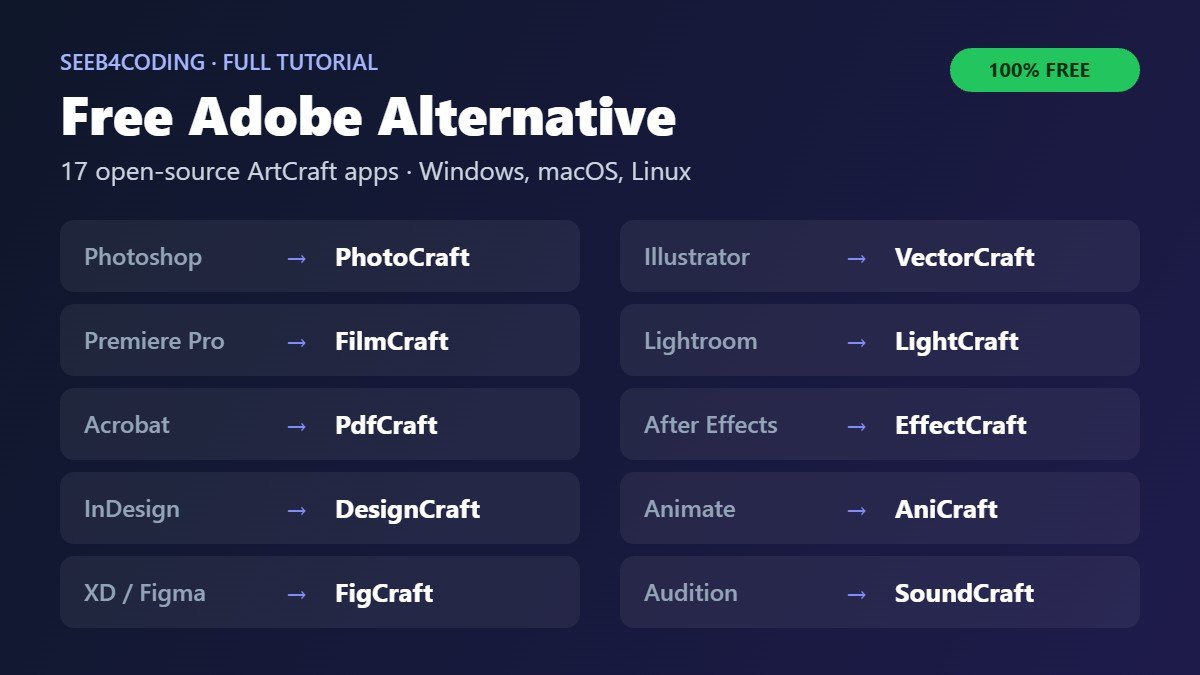
Here’s a simple mapping. That said, the status column is what ArtCraft lists on their site right now, so keep that in mind before you cancel anything.
| If you use (Adobe) | Try this (ArtCraft) | What it does | Status |
|---|---|---|---|
| Photoshop | PhotoCraft | Layered image editing | Early alpha |
| Illustrator | VectorCraft | Vector illustration | In development |
| Premiere Pro | FilmCraft | Video editing | In development |
| Lightroom | LightCraft | Photo library and raw developer | In development |
| Acrobat | PdfCraft | Read, organize, combine, split, secure PDFs | Early alpha |
| After Effects | EffectCraft | Motion graphics and VFX | In development |
| Animate | AniCraft | 2D vector animation | Early alpha |
| InDesign | DesignCraft | Page layout and publishing | In development |
| XD (and Figma) | FigCraft | Interface design and prototyping | Early alpha |
| Substance Painter | TextureCraft | 3D texture painting | In development |
| Substance Designer | MaterialCraft | Node-based procedural materials | In development |
| Audition | SoundCraft | Audio recording, editing and mixing | In development |
There are also a few non-Adobe ones in the set: WordCraft (word processor), DeckCraft (presentations), GridCraft (spreadsheets), CADCraft (2D drafting) and Craft Anything, which is more of an experiment for exploring how software works and building your own version.
Step 1: Download the free ArtCraft Launcher
Of course, you can install each app separately. However, the easiest way is the ArtCraft Launcher. It installs every app from one place, picks the correct build for your computer and keeps everything updated. In other words, think of it as their version of the Creative Cloud desktop app, minus the subscription.
- First, go to getartcraft.com/apps.
- Next, click Download Launcher. On Windows this gives you a 64-bit
.msiinstaller. - On a Mac or Linux machine, click All launcher downloads just under the button. This then takes you to the GitHub releases page where you pick your platform and architecture.
- Then run the installer like any other program and open the launcher.
- Finally, pick the apps you want. If you’re not sure, start with PhotoCraft, VectorCraft and PdfCraft, since those cover what most people use day to day.
Safety tip: only download from getartcraft.com or the official storytold GitHub account. Also, skip random mirror sites offering “faster downloads”.
Prefer just one app? Use the standalone download
Open any app’s page (for example PhotoCraft) and scroll to Option 2 · Standalone. You’ll find:
- macOS: a Universal disk image that works on both Apple silicon and Intel Macs.
- Windows: a 64-bit installer for Windows 10 and 11, plus a portable
.zipyou can just unzip and run. Great for a pen drive. - Linux: a sandboxed Flatpak. Install it with
flatpak install --userfollowed by the downloaded file. - FreeBSD: plain binaries, if that’s your thing.
Even better, if you install standalone now and get the launcher later, the launcher will find the app and start updating it. Nice touch.
For developers: build from source
Alternatively, every app has its own repo under github.com/storytold. Of course, you’ll need Rust 1.90 or newer. The usual flow is:
git clone https://github.com/storytold/photocraft
cd photocraft
cargo run --release
Before you start, check each repo’s README, because build steps can differ slightly between apps.
Step 2: PhotoCraft, the free Photoshop alternative
Naturally, this is the one most people will care about, so I’ll go a little slower here.
Since this is the free Adobe alternative most people will try first, the whole point of PhotoCraft is that you shouldn’t have to hunt for anything. ArtCraft says the menus, shortcuts, panels and tools are where your hands already expect them, and it supports layers, masks, adjustment layers, layer styles, type, vectors and brushes.
Open an existing PSD
For most people, this is the real test of any Photoshop alternative. PhotoCraft opens and saves layered PSD and PSB files, and ArtCraft says 134 of 135 real-world test files round-trip byte for byte. Try it with one of your own PSDs, like an old thumbnail or banner, and check that layer names, text layers and effects come through. Still, always test on a copy, not the original, especially for client work.
Do a quick non-destructive colour fix
- First, open a photo with File > Open.
- Next, add a Curves adjustment layer from the adjustments menu or the button at the bottom of the Layers panel.
- Pull the lower part of the curve down a little and the upper part up a little. That’s a classic gentle S-curve for contrast.
- After that, paint on the adjustment layer’s mask with a soft black brush to remove the effect from areas you don’t want, like skin.
- Finally, toggle the eye icon to compare before and after.
On top of that, there are 16 adjustment layer types and 70+ filters with live preview, plus smart objects with smart filters, so your original pixels stay safe.
Cut out a subject without uploading anything
Better still, subject and object selection runs on your own computer, not on someone’s server. First, select the subject. Then refine the mask edges around hair. As with any auto-selection tool, expect cleaner results on simple backgrounds than on busy ones.
Print work? It handles proper colour
You get 8, 16 and 32-bit documents in RGB, CMYK, Lab and Grayscale, with ICC colour management and soft proofing. That’s a lot for an alpha app. So if you send work to a printer, you can actually prep it here.
Add text and export
- First, press T for the type tool, click on the canvas and type your heading.
- Then add a layer style like a drop shadow or stroke from the layer’s style options.
- After that, save as PSD to keep layers and export a PNG or JPG for the web.
Step 3: VectorCraft, the free Illustrator alternative
Next, if you make logos, icons or posters, open VectorCraft. You’ll find the pen tool, direct selection, shape booleans, snapping guides and an appearance panel.
Two things stand out:
- It’s fast. ArtCraft says 20,000 shapes render in about 27 ms at retina resolution and the UI runs at 120 fps.
- Booleans that don’t fail. If you’ve ever seen Illustrator’s “cannot perform operation” when merging shapes, you know the pain. Instead, their booleans are exact curve booleans.
Quick exercise: draw a circle and a rectangle, overlap them, select both and use the boolean unite option. After that, try minus front to punch a shape out. That’s 80% of icon design right there.
For tracing, there’s an image trace feature with 12 presets, so you can turn a scanned sketch or a low-res logo into clean paths. In addition, you get live effects like blends, envelope distort, gradient mesh, repeats, glows and shadows that stay editable.
For files: it saves in its own JSON format, imports and exports SVG and PDF, and outputs PNG, JPEG and WebP. There’s multi-size export for screens, handy for app icons and favicons. However, there’s no mention of native .ai file support, so open your old Illustrator files as PDF or SVG instead.
Step 4: FilmCraft, the free Premiere Pro alternative
FilmCraft gives you source and program monitors, three-point editing, all the trim modes and J/K/L shuttle. So if you’ve edited in Premiere, the layout will feel normal.
Some interesting bits:
- No FFmpeg inside. Instead, it has its own native H.264, HEVC, ProRes, VP9, AAC and Opus codecs.
- Frame-exact time. 23.976 and 29.97 drop-frame stay exact, so no weird drift on long timelines.
- Colour grading with curves, colour wheels, HSL secondaries, LUTs, HDR and log workflows, plus scopes.
- About 55 video effects, 30 transitions and keyframes with graph editors.
- Audio with EBU R128 loudness meters and a mixer with automation. This is especially useful if you upload to YouTube and want consistent loudness.
Basic edit flow: import your clips, open one in the source monitor, set in and out points with I and O, drop it into the timeline, trim, add a transition, colour grade, then export. For short Reels and YouTube videos, that basic flow covers most of what you need. Keep in mind that FilmCraft doesn’t list a web version, so this one is desktop only.
Step 5: The rest of this free Adobe alternative suite
LightCraft (Lightroom)
A photo library plus raw developer. It uses a 32-bit float, wide-gamut pipeline and never touches your originals. You get the usual light and colour sliders, tone curve, an 8-band colour mixer, 3-way colour grading wheels and 18 presets. For example, import a folder of raw files, pick one, adjust it, and then sync settings across similar shots.
PdfCraft (Acrobat)
This is probably the one most people will use daily. For example, you can rotate, delete, insert and reorder pages like cards. Combine several PDFs into one or split one into many while keeping links, form fields and bookmarks. It also opens encrypted PDFs (RC4 to AES-256) and respects author permissions. Saves are incremental with autosave and crash recovery. For instance, when merging invoices or splitting a scanned document, it beats uploading your files to random “free PDF” websites.
EffectCraft (After Effects)
Keyframes with linear, bezier, hold and eased keys, a graph editor, shape and text layers, nested compositions, cameras and lights, track mattes and 38 blend modes. On top of that, they list 259 effects, real 3D and expressions. As a result, it’s a good fit for title animations and lower thirds.
DesignCraft (InDesign)
To start with, you get spreads, parent pages, threaded text frames, paragraph and character styles, text wrap. Typography is serious here, with a Knuth–Plass line breaker (the same idea TeX uses), hyphenation and baseline grids. Plus, it exports print-ready PDF with CMYK, spot colours, bleed, crop marks and PDF/A. So if you make brochures, menus or magazine layouts, give it a try.
FigCraft, AniCraft, SoundCraft and others
FigCraft is for UI design and prototyping with a layout familiar to Figma users. Meanwhile, AniCraft handles 2D vector animation. Similarly, SoundCraft is a full audio workstation with waveforms, MIDI tracks and mixing. TextureCraft and MaterialCraft are for 3D artists. Since these are the earliest in their journey, so check each app page for the current feature list.
Bonus for developers: control the apps with code
This part doesn’t get talked about enough. Every Crafting App can be driven through a CLI, a JSON control channel or an MCP server. In DesignCraft, for example, every menu item, tool, panel and dialog can be controlled that way.
What does that mean in practice? For example, you could write a script that opens 50 product photos, applies the same adjustment and exports them. Similarly, you could connect an AI assistant through MCP and ask it to lay out a flyer for you inside a real design app instead of generating a flat image. If MCP is new to you, start with my guide on what MCP is in AI, and then read how to use MCP servers to build smarter AI tools. Meanwhile, the docs for each app live on craft.wiki, so start there for the exact commands.
Is ArtCraft a good free Adobe alternative? My honest take
Let me be straight, because I hate posts that oversell.
What’s good:
- First of all, it’s free. Not a trial, not freemium. Free and open source.
- Also, it works offline and your files never leave your machine.
- It runs on Windows, Mac and Linux, which Adobe still doesn’t do for Linux.
- Plus, the layouts are familiar, so the learning curve is small.
- PSD support looks strong, at least going by ArtCraft’s own test numbers.
- Scripting and MCP support are genuinely useful for developers and automation.
What’s not ready yet:
- Every app is labelled “early alpha” or “in development”. Because of that, expect bugs and missing features.
- Unlike Photoshop, there’s no plugin ecosystem yet.
- Likewise, there are no team libraries, cloud sync or stock assets.
- There are fewer tutorials and YouTube videos for now (hopefully this post helps a bit).
- If a client sends you
.aior.inddfiles, don’t expect a smooth ride yet.
My suggestion: if you’re a student, freelancer, small business owner or a developer who only needs design tools now and then, install it today and use it for real tasks. If you’re a professional with client deadlines, keep your Adobe plan for now, but install these alongside it and try them on side projects. Then, once you feel confident, you can drop one Adobe app at a time instead of switching everything in one go.
Quick FAQ
Can I open Photoshop PSD files?
Yes. In fact, PhotoCraft opens and saves layered PSD and PSB files.
Does it need internet?
No. In fact, the desktop apps run locally on your own files.
Will it run on my old laptop?
The apps are native and GPU-accelerated (Metal, Vulkan, DirectX 12 and WebGPU), so they’re lighter than Electron-based tools. If your machine is very old, the browser builds are worth a try.
Where do I report bugs or ask for help?
Generally, the team is active in the ArtCraft Discord, which is linked on every app page. Early builds and roadmaps are posted there too.
Wrapping up
“Free Photoshop alternative” is something we’ve all heard many times. But the combination here is different: seventeen apps, one launcher, native performance, real PSD support and scriptable from code. That’s why I’d call it the most promising free Adobe alternative right now. It’s early, and you’ll feel that in places. Even so, it’s one of the most complete open-source attempts at a full creative suite so far.
So give this free Adobe alternative a try and tell me in the comments which app you tested first and how it went. And if you like discovering free tools, check out my list of the best AI tools for developers in 2026. If enough of you want it, I’ll do a separate deep-dive on PhotoCraft or the MCP automation side.